Medical bills are confusing, and a confusing bill is a bill that does not get paid. Patients receive statements from insurers, labs, and clinics, each with different codes and numbers, and they often cannot tell what they actually owe. A clear patient invoice changes that. This Medical Clinic Patient Invoice Template lists each service with its CPT code in plain language, shows exactly what insurance paid and what was adjusted, and ends with one number: the patient’s balance.
For Clinics, Practices and Independent Providers
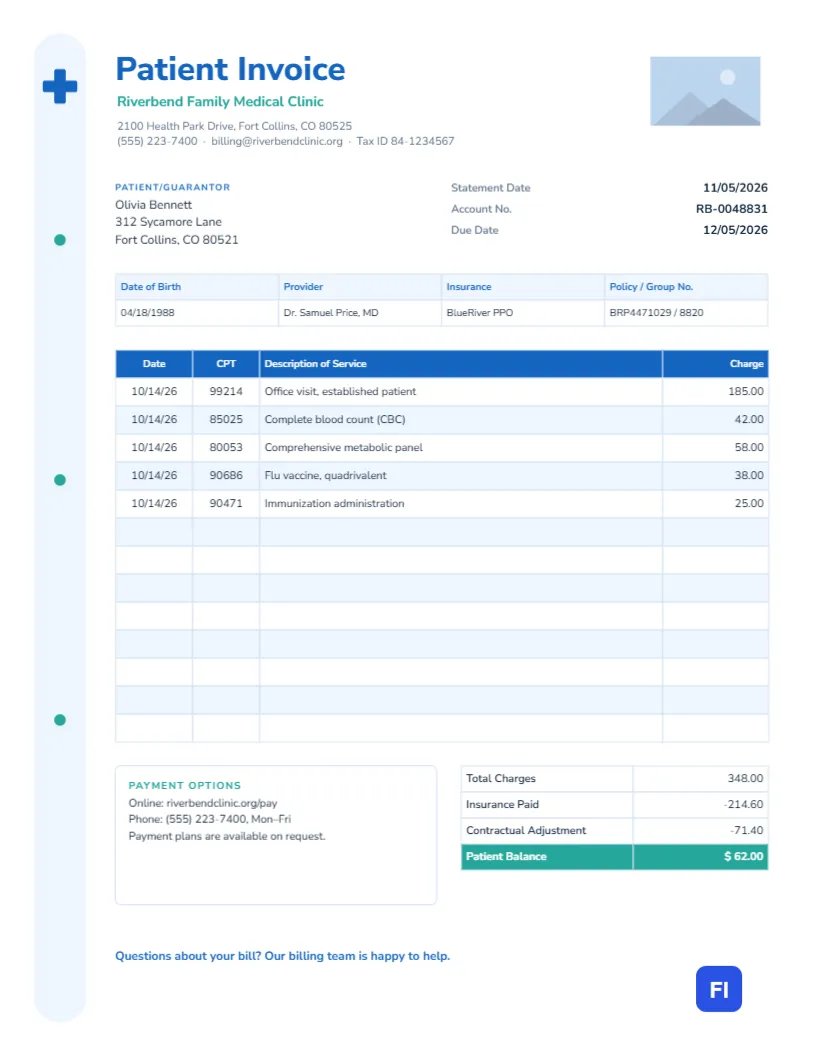
The layout suits family medicine and urgent care clinics, specialist practices, physiotherapists, chiropractors, dentists, mental health counsellors, dermatologists, and small medical billing services. The sample shows Riverbend Family Medical Clinic in Fort Collins billing patient Olivia Bennett for an established patient office visit, a complete blood count, a comprehensive metabolic panel, a flu vaccine and its administration.
Soft Blue, Teal and a Quiet Medical Cross
A tall, rounded rail in very pale blue runs down the left edge of the page, with a blue medical cross at the top and three small teal dots spaced down its length. It is calm rather than clinical, the visual equivalent of a well-run waiting room. Patient Invoice is set in bold blue Nunito Sans, with the clinic name in teal and the address, phone, billing email, and tax ID underneath. A logo slot sits in the top-right corner.
The patient or guarantor block and the statement date, account number, and due date follow. A strip lists date of birth, provider, insurance plan, and policy and group numbers. The services table has four columns: Date, CPT, Description of Service, and Charge. A Payment Options box sits beside the totals, which subtract the insurance payment and contractual adjustment from total charges to give a teal Patient Balance. A reassuring line at the bottom reads: Questions about your bill? Our billing team is happy to help.
How the Patient Balance Is Reached
Patients trust a bill more when they can follow the arithmetic. With the sample figures, the calculation runs like this:
- Total charges: $185 + $42 + $58 + $38 + $25 = $348.00, the clinic’s standard fees.
- Insurance paid: The insurer paid $214.60 under the patient’s plan.
- Contractual adjustment: $71.40 is written off because the clinic has agreed to lower rates with that insurer. The patient does not owe it.
- Patient balance: $348.00 – $214.60 – $71.40 = $62.00, usually the patient’s copay, coinsurance, or deductible share.
The same four steps appear in the totals table, so the patient can compare the invoice line by line with the Explanation of Benefits (EOB) from their insurer.
Writing Service Descriptions Patients Understand
CPT codes are essential for insurers but meaningless to most patients. Always pair each code with a plain description: Office visit, established patient rather than just 99214; Complete blood count (CBC) rather than 85025. If a service was a bundled lab panel, say so. Clear descriptions reduce calls to your billing team.
Privacy and What Not to Include
Invoices may be opened by family members or sent to a guarantor. Include only the information needed for billing: services, codes, dates, and amounts. Leave diagnoses and clinical notes off the invoice. Send electronic copies through a secure portal or encrypted email where your privacy rules require it, and never include a full insurance card image.
Editing Services and Balances
The patient strip, the services list, and the totals are editor tables. Double-click to update them, or open Edit Table Data and use + Add Row or – Remove Last to fit the visit. The cells contain typed text rather than formulas, so after changing any charge, recalculate the total charges and patient balance by hand and check them against the EOB before sending.
Payment Plans and Financial Assistance
A surprisingly large share of patients will pay if you make it easy. The Payment Options box lists online payment, a phone line with hours, and a note that payment plans are available. If your clinic offers financial assistance or a prompt-pay discount, mention it here too. Kind, practical wording keeps patients coming back for care rather than avoiding the clinic because of a bill.
Customising for Your Practice
Replace the logo placeholder in the top-right corner using Replace Image. The medical cross is built from two rounded rectangles grouped, so it recolours in one click; dentists or physiotherapists may prefer a tooth or a figure icon from the library instead. The pale blue rail and teal accents can shift to your practice colours, but soft tones suit healthcare best.
Printing and Mailing Statements
The page is US Letter, 8.5 x 11 inches, which fits a standard #10 window envelope when folded in thirds with the patient address showing. Print on plain white paper. For email or portal delivery, download the PDF and name it with the account number and statement date.
When Insurance Has Not Paid Yet
If a claim is still pending, you can send the invoice with the Insurance Paid line marked Pending and the balance shown as Estimated. Tell the patient not to pay yet, or to pay only their copay, and send a final statement once the EOB arrives. Being upfront about the timing prevents overpayments and the refunds that follow.
Coordinating With the Explanation of Benefits
Most billing questions come from patients holding an Explanation of Benefits in one hand and your invoice in the other. Use the same service dates, the same CPT codes, and the same order of services as the claim you submitted, and the two documents line up naturally. If the insurer denied a line, say so in the description; for example, Denied: not covered under plan, so the patient knows why it is their responsibility and can appeal if they choose.
Patient Invoice FAQs
Can I use this for self-pay patients?
Yes. Remove the insurance and adjustment rows and apply any self-pay discount instead.
Where do I put the guarantor if the patient is a child?
Write the parent or guardian’s name in the Patient/Guarantor block, with the patient’s name on the line below.
Should I include the tax ID?
Many patients need it for a health savings account or tax records, so it is included under the clinic address.